Compress PDFs for upload limits on iPhone
Use Boreal PDF on iPhone to target 1MB, 3MB, 5MB, or 10MB upload limits, compare compression results, and keep scanned text readable before export.
Choose the portal's file-size limit first, compress toward that target, then inspect names, dates, signatures, and reference codes in the exported PDF. The smallest file is not automatically the best submission.
Check the target limit first
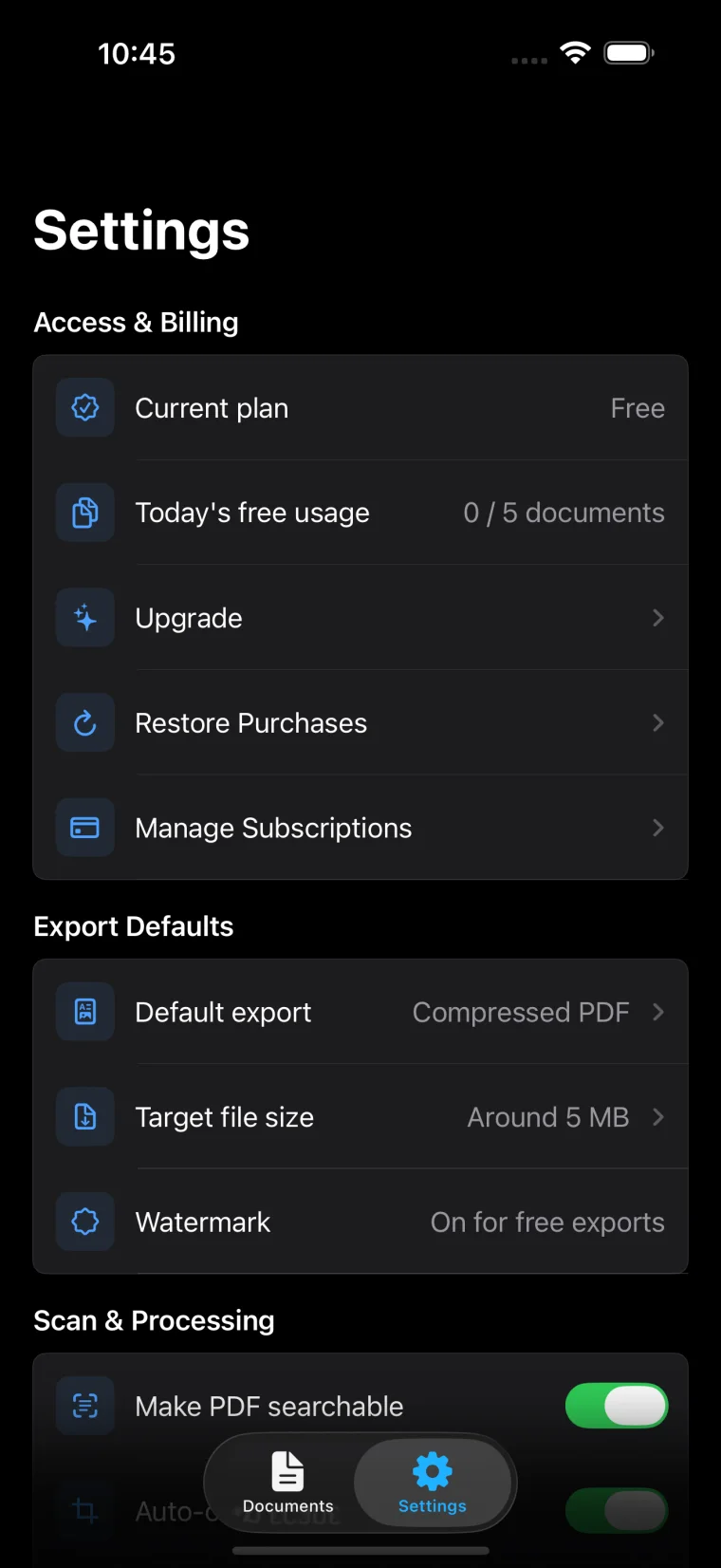
Common targets include 1MB, 3MB, 5MB, and 10MB. Boreal PDF is designed around choosing a target size before export so you can match the portal instead of guessing.
Inspect the important details
- Names, dates, addresses, and amounts
- Signatures and stamp-style marks
- Page order in multi-page documents
- Barcodes, QR codes, or reference numbers when they matter
Do not chase the smallest file
A smaller PDF is not useful if the recipient cannot read it. Preview the result after compression and make sure the important areas still look clear.
When OCR is part of the workflow
If you plan to export a searchable PDF, verify OCR before and after compression. Printed text usually works best; glare, handwriting, skew, and low light can reduce accuracy.